
I wanted to test 802.1X/EAP-TLS in my Wi-Fi lab network and after some searches online I found a setup with the use of Jumpcloud as the Radius server, Keyfactor/EJBCA platform as my PKI instance, and an Ubuntu client.
Let us see how I did it
The goal is to have a free-of-cost and simple setup to test Wi-Fi association with certificates, WPA2/3 Enterprise, and EAP-TLS.
This will not be a full explanation of all the features. More like a “note-to-self”.
For 802.1X/EAP-TLS to work in Wi-Fi you need
- Radius server to take care of user accounts and user association requests
- PKI (Public Key Infrastructure) to generate certificates to be used on the clients and the Radius server
- A Wi-Fi network able to operate a WPA2/WPA3 Enterprise network/SSIDs
- Wi-Fi clients where it is possible to install certificates
In my setup I use Jumpcloud as my Radius server, Keyfactor/EJBCA as my PKI instance, and an old Lenovo M900 with Ubuntu 24.04 LTS installed with a Comfast CF-951ax WI-Fi NIC.
For background material
- My own YouTube video on 801.1X/EAP-TLS, a deep dive record by record look here
- A full video course on Practical TLS by Ed Harmoush, look here
We need to get
- A client certificate that is digitally signed by a root CA or its sub CA to be installed on the client
- The root CA certificate chain to be installed in the Radius server
- The Radius server root CA certificate chain to be installed on the client
PKI-instance
It is possible to do PKI with OpenSSL, but I have found a solution at Keyfactor called EJBCA. I use EJBCA Community Edition, which is free to use and runs on Docker container. They have an ephemeral test instance where you start the application in the Docker container, and when you close the application everything is deleted.
To create your own PKI instance on Ubuntu, make a root CA, and create client certificates it is three steps to do:
- Start EJBCA Container with Unauthenticated Access, tutorial
- Create your first Root CA using EJBCA, tutorial
- Issue TLS client certificates with EJBCA, tutorial
- but this tutorial is based on Issue TLS server certificate with EJBCA, tutorial. Only step 1
In short
- install Docker with:
sudo snap install docker - pull EJBCA Community container:
sudo docker pull keyfactor/ejbca-ce - start EJBCA Community container: $ sudo docker run -it –rm -p 80:8080 -p 443:8443 -h localhost -e TLS_SETUP_ENABLED=”simple” keyfactor/ejbca-ce
- start your browser and go to URL showed when EJBCA has started
- For creating your Root CA, just follow the steps in the tutorial
- For issuing a client certificate, follow the steps in the tutorial
- Download the client certificate as a PKCS#12 or p12-file in RA web
- Download your CA certificate chain as an PEM-file under “CA Certificates and CRLs” in the RA WEB
Jumpcloud
In Jumpcloud you need to make a user account and an admin user account. In addition to the admin account you need a multi factor instance. I use Jumpcloud Protect on my cell phone.
Then you need to add Users and optionally User Groups under User Management. Make a user name with the same name as you used when issuing client certificates
Select Radius and make a new Radius server
In Details, give your server a name and add your network’s public IP address or let Jumpcloud get it for you. You also need to download Jumpclouds certificate chain from this page.
In Authentication, select Passwordless and upload your certificate CA-chain PEM-file you downloaded from your EJBCA root-CA earlier
In User Groups, select the User group you made earlier in Jumpcloud
802.1X/EAP-TLS setup in your Wi-Fi network
At your Wi-Fi controller or Wi-Fi management system you need to configure an SSID for 802.1X Enterprise and point to Jumpcloud’s radius server with the IP address 76.223.67.151 or, if you have DNS, radius.jumpcloud.com, at port 1812, and with the shared secret shown at your Jumpcloud server Details section.
Wi-Fi client setup
Next is the final step, prepare your test Wi-Fi client. Since I use a Lenovo desktop with Ubuntu and an external Wi-Fi adapter, it looks like this:
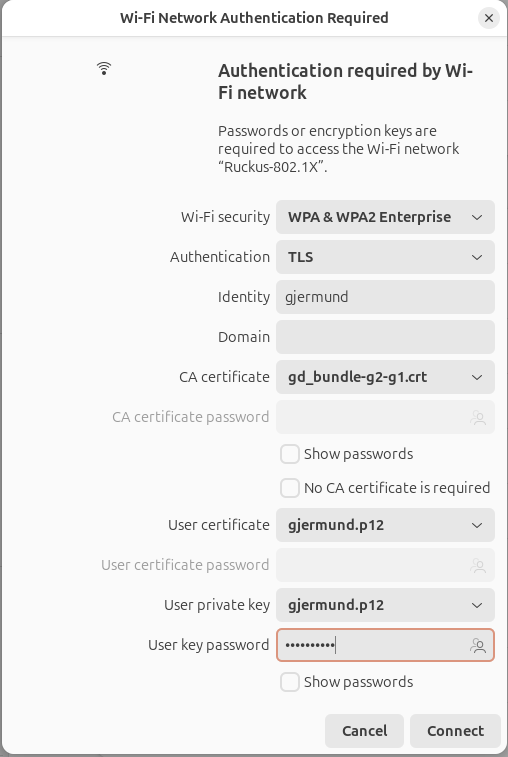
With Wireshark capturing on the correct channel, you will also see the EAP-TLS process there
Now you have an easy-to-set-up PKI instance and can test Wi-Fi association with certificates in your Wi-Fi test lab. Just be aware that when you turn off the PKI instance everything is deleted, so make your certificates and download them before turning the PKI instance off.
 Gjermund Raaen